
Gairmean bhidio neo-sheasmhach, luchdachadh sìos slaodach, agus duilleagan-lìn a’ snàgadh gus luchdachadh – is iad sin frustrachas a bhios mòran dhaoine a’ fulang gach latha. Chan eil a’ mhòr-chuid a’ tuigsinn dè an ìre gu bheil astar an eadar-lìn a’ toirt buaidh air coileanadh obrach.
’S e astar an eadar-lìn cnàimh-droma co-obrachadh iomallach agus cinneasachd didseatach. Chan ann dìreach airson goireasachd a tha feum air astar an eadar-lìn a leasachadh; bidh e a’ cruthachadh sruth-obrach nas socair agus nas lugha de chuideam didseatach dha na h-uile.
Feuchaidh sinn ri sgrùdadh domhainn a dhèanamh air na dòighean sònraichte a bheir astar do cheangail buaidh air do latha agus ceumannan as urrainn dhut a ghabhail gus astar an eadar-lìn a leasachadh gun duilgheadas sam bith.
A’ tuigsinn bacaidhean astar eadar-lìn ann an obair làitheil
Le bhith a’ comharrachadh dàil is buaireadh, faodaidh tu gnìomh a dhèanamh mus cuir iad bacadh air do latha. Bidh tuigse air na puingean pian seo gad chuideachadh le bhith a’ cur fòcas air astar an eadar-lìn a leasachadh.
Bidh astaran slaodach gan nochdadh fhèin mar bhidio a tha a’ stad, sàbhalaidhean sgòthan a dh’fhàillig, agus stad teann ann an còmhraidhean sgioba. Is e aithneachadh soilleir a’ chiad cheum a dh’ionnsaigh fuasglaidhean.
A’ faicinn bacadh air coileanadh ann an coinneamhan beò
Faodaidh gairmean bhidio reothadh ann am meadhan seantans, gad fhàgail a’ tomhas no ag iarraidh a-rithist is a-rithist “feuch an ath-aithris thu sin.” Bidh na h-amannan sin a’ cur suas gu luath, a’ caitheamh ùine agus lùth.
Bidh dàil ann an roinneadh sgrion a’ tionndadh cuairtean goirid gu seiseanan fada. Nuair a chanas companach sgioba “Fuirich, chan fhaic mi e,” tha sin na fhìor bhratach dhearg airson cùisean astair.
Bidh fios-air-ais cunbhalach mar “tha thu a’ dealachadh” a’ comharrachadh gu dìreach gu bheil feum air astar an eadar-lìn a leasachadh airson coinneamhan nas socair agus nas lugha mì-chofhurtail.
Aplacaidean sgòthan a tha a’ cur dàil air cùisean bunaiteach comharran
Faidhlichean a’ stad aig 98%, teachdaireachdan mearachd nuair a bhios tu a’ sàbhaladh, no aplacaidean a’ toirt ùine mhòr airson sioncronachadh – tha na duilgheadasan clasaigeach seo a’ tighinn bho cheangal slaodach. Tha mothachadh a’ phàtrain na leth na h-obrach.
Nuair a bhios pròiseactan an urra ri faidhlichean a tha air an cumail ann an draibhean sgòthan, bidh gach diog de dhàil a’ cur bacadh air an t-slighe. Bidh sgiobaidhean ag ràdh, “Chan eil an sgrìobhainn a’ luchdachadh dhòmhsa,” a’ sealltainn strì co-roinnte.
Bidh sgiobaidhean ro-ghnìomhach a’ dèiligeadh ris a’ chùis seo gu dìreach, ag amas air astar an eadar-lìn a leasachadh mus toir dàil buaidh air co-obrachadh agus misneachd nas fharsainge.
| Gnìomhachd | Astar as ìsle a dh’ fheumar | Comharradh àbhaisteach nuair a bhios e mall | An ath cheum a ghabhas obrachadh |
|---|---|---|---|
| Gairm Bhidio HD | 5 Mbps | Bhidio reòta, claisneachd garbh | Gluais gu ceangal uèirleas airson seasmhachd |
| Luchdaich suas faidhlichean san sgòth | Luchdaich suas 10 Mbps | Bheir faidhlichean ùine mhòr, bidh luchdachadh suas a’ fàiligeadh | Cuir stad air luchdachadh suas mòr eile rè uairean obrach |
| Brabhsadh Lìn | 2 Mbps | Duilleagan gun luchdachadh, freagairt slaodach | Cuir às do leudachaidhean brabhsair a bharrachd |
| Co-labhairtean-lìn Sruthadh | 8 Mbps | Bufaireachadh, ath-luchdachadh cunbhalach | Lùghdaich càileachd a’ bhidio ma tha sin riatanach |
| Luchdaich sìos faidhle mòr | 25 Mbps | Amannan luchdachadh sìos fada | Clàraich luchdachadh sìos mòr às dèidh uairean |
Ceumannan Ro-innleachdail a dh’atharraicheas ceanglaichean slaodach gu lìonraidhean luath, earbsach
Tha barrachd ann na dìreach gearan gus ceangal slaodach a dhèanamh nas luaithe. Bheir na ceumannan seo smachd dhut, eadhon le eòlas teicneòlais cuibhrichte.
Le bhith a’ toirt prìomhachas do na gnìomhan seo, cumaidh sin fòcas ort air leasachaidhean practaigeach, san t-saoghal fhìor – tha gach fear air a thaghadh gus do chuideachadh le bhith a’ leasachadh astar an eadar-lìn bhon latha an-diugh.
Leasaich suidheachadh Wi-Fi airson buannachdan sa bhad
Le bhith a’ cur an router agad sa mheadhan, lughdaichidh sin sònaichean marbha agus comharran lag. Bidh gluasad chnapan-starra - leithid ballachan tiugh agus nithean meatailt - a’ leasachadh astar an eadar-lìn agad gu sgiobalta gun chosgais a bharrachd no ùrachaidhean teicneòlais.
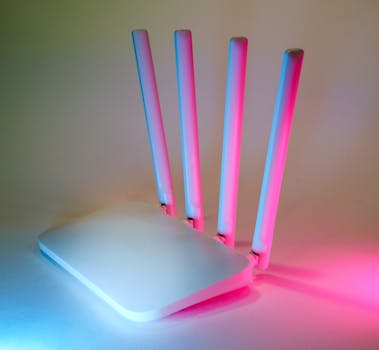
Cuir na h-antennaichean suas agus seachain oiseanan gus dèanamh cinnteach gu bheil an comharra air a sgaoileadh nas co-ionnan. Bidh luchd-cleachdaidh a’ mothachadh sruthan bhidio nas socair agus ruigsinneachd faidhlichean nas luaithe leis an atharrachadh seo.
- Cuir an router air mullach sgeilp, chan ann am falach, gus bacadh a lughdachadh - comharra nas làidire a’ ciallachadh astar nas fheàrr dha na h-uile a bhios a’ cleachdadh Wi-Fi faisg air làimh.
- Cùm miocro-tonnan agus fònaichean gun uèir air falbh bhon router; bidh iad a’ leigeil a-mach comharran a chuireas dragh air Wi-Fi agus a chuireas bacadh air ceanglaichean.
- Ath-thòisich an router aon uair san t-seachdain. Bidh ath-thòiseachadh cunbhalach a’ glanadh mhearachdan beaga bathar-bog agus a’ cumail an lìonra ag obair aig an ìre as àirde.
- Atharraich seanalan an router anns a’ chlàr-taice roghainnean gus casg a chuir air cus Wi-Fi nan nàbaidhean, a’ lughdachadh bacadh agus a’ leasachadh astar an eadar-lìn gu mòr rè cleachdadh trom.
- Cuir crìoch air innealan dachaigh snasail ceangailte rè choinneamhan no luchdachadh suas cudromach - tha seo a’ dèanamh cinnteach gu bheil leud-bann air a chuimseachadh far a bheil feum as motha air airson gnìomhan obrach.
Tha gach aon de na ceumannan seo luath, ath-thionndaidheach, agus cha chosg iad dad - feuch iad airson àrdachadh follaiseach ann an astar oifis an dachaigh agad.
Ùraich bathar-cruaidh lìonra a-mhàin nuair nach eil atharrachaidhean sìmplidh gu leòr
Ma tha deuchainnean astair a’ sealltainn gu bheil figearan nas ìsle na do phlana, smaoinich air routers ùr-nodha no siostaman mogaill a chaidh a dhealbhadh airson feumalachdan obair bhon taigh. Tha na h-innealan sin a’ toirt taic do astaran nas luaithe agus ceanglaichean nas cunbhalaiche air feadh an àite agad.
- Coimhead airson routers leis an leubail “dùbailte-chòmhlan” no “trì-chòmhlan” - tha seo a’ ciallachadh nas lugha de dhùmhlachd agus coileanadh nas fheàrr nuair a bhios tu a’ sruthadh, a’ cluich gheamannan, no a’ ruith aplacaidean lìn aig an aon àm.
- Tagh siostaman mogaill ma tha còmhdach na dhùbhlan cunbhalach. Bidh iad a’ leudachadh Wi-Fi thar gach làr is seòmar—a’ leasachadh astar an eadar-lìn ann an àiteachan duilich leithid garaidsean no àiteachan-àrda.
- Tasgadh ann an càbaill Ethernet airson coimpiutairean stèidhichte—tha an earbsachd nas fheàrr na Wi-Fi math, a tha air leth freagarrach airson coinneamhan cudromach agus faidhlichean mòra a luchdachadh suas.
- Thoir prìomhachas do suidsichean gigabit ma tha grunn innealan proifeasanta no oileanach anns an taigh agad, a’ dèanamh cinnteach gum faigh a h-uile duine a’ chuid as fheàrr às an ìre seirbheis aca.
- Ùraich bathar-bog bathar-cruaidh le bhith a’ cleachdadh innealan an neach-dèanamh airson tèarainteachd agus leasachaidhean astair. Suidhich cuimhneachan gus sùil a thoirt air ùrachaidhean gach mìos.
Nuair a bhios an teicneòlas agad a’ freagairt ris an obair agad, thèid “Carson a tha seo cho slaodach?” a chur an àite le cinneasachd shàmhach, fhòcasach – prìomh dhòigh air astar an eadar-lìn agus comhfhurtachd obrach a leasachadh.
Atharrachaidhean Sònraichte do Ghnìomhan airson Coileanadh Air-loidhne as Àirde
Bheir atharrachadh do dhòigh-obrach airson diofar ghnìomhan obrach leasachaidhean faicsinneach. Chan eil feum aig a h-uile gnìomhachd air-loidhne air an aon leud-bann, mar sin gnàthaich roghainnean a rèir do fheumalachdan làithreach.
Tha an dòigh seo ag amas air cùisean aig an stòr – le bhith a’ taghadh an fhuasglaidh cheart, bidh a h-uile oidhirp gus astar an eadar-lìn a leasachadh nas èifeachdaiche.
A’ sgèileadh càileachd bhidio is claisneachd gun a bhith a’ dèanamh cron air proifeiseantachd
Airson a’ mhòr-chuid de choinneamhan, chan eil àrd-mhìneachadh riatanach. Atharraich am bathar-bog gairm bhidio agad gu “àbhaisteach” no “ìosal” nuair nach eil feum air ìomhaighean soilleir, a’ saoradh leud-bann airson gairmean nas socair.
Cleachd claisneachd a-mhàin ma dh’fhailicheas an ceangal agad rè gairm (“Leig dhomh a dhol claisneachd a-mhàin airson mionaid”). Cuidichidh seo le taisbeanaidhean fuireach soilleir, eadhon aig amannan aig astar ìosal.
Clàraich coinneamhan aig rùn nas ìsle agus luchdaich suas iad às dèidh uairean obrach, gus an urrainn dhut astar an eadar-lìn a leasachadh airson gnìomhan sgioba eile nuair a tha an leud-bann as cudromaiche.
A’ toirt prìomhachas do thrafaig obrach: Riaghladh lìonra le innealan sìmplidh
Cuir Càileachd Seirbheis (QoS) an gnìomh ann an roghainnean an router agad gus prìomhachas a thoirt do ghairmean, luchdachadh suas, no aplacaidean gnìomhachais. “Mhothaich mi gu bheil Netflix a’ dol sìos, ach tha an Zoom agam rèidh” - sin QoS ann an gnìomh.
Comharraich an dà no trì aplacaidean a tha deatamach airson d’ obrach, agus an uairsin suidhich iad mar phrìomhachas. Leigidh an aon atharrachadh seo leat astar an eadar-lìn a leasachadh air prìomh ghnìomhan gu fèin-ghluasadach.
Cuir dheth ùrachaidhean fèin-ghluasadach agus sioncronachadh cùl-fhiosrachaidh rè do latha-obrach (cuir dheth e anns na roghainnean). Bidh na h-atharrachaidhean beaga seo a’ cur leud-bann far a bheil e cudromach, a’ leigeil leat pròiseactan a chrìochnachadh ron àm a thathar a’ moladh.
Suidheachaidhean reusanta: Fuasgladh dhuilgheadasan dàil agus cumail obair air an t-slighe cheart
Le bhith a’ glacadh is a’ càradh mhearachdan ceangail cho luath ‘s a nochdas iad, bidh smachd agad fhathast. Leasaich na h-instincts fuasgladh-cheistean seo gus astar an eadar-lìn a leasachadh airson a’ bhuidheann-obrach gu lèir.
Sgriobt: A’ dèiligeadh ri gairmean bhidio mì-rianail ann an suidheachadh sgioba
“Tha mi a’ mothachadh dàil. An urrainn dhuinn stad a chuir air a’ bhidio?” Ma mholas sinn gluasad gu claisneachd, cuidichidh sin a h-uile duine gus fuireach fòcasach nuair a tha an gairm buidhne a’ strì le astar eadar-lìn bochd.
Tairgse taisbeanadh a chlàradh no a luchdachadh suas nas fhaide air adhart: “Leig dhomh an scrion a chlàradh agus a chur às dèidh na coinneimh.” Bidh seo a’ seachnadh bhacaidhean aig àm cleachdadh an eadar-lìn aig ìre as àirde agus a’ cumail a h-uile duine cinneasach.
Molaibh feuchainn ri àrd-ùrlar eadar-dhealaichte—uaireannan is e am bathar-bog gairm a tha ciontach. “Gluaisidh sinn gu Google Meet; tha Teams ag obair gu garbh an-dràsta.” Bidh an ath-shuidheachadh seo gu tric a’ fuasgladh chnapan-starra falaichte ann an astar.
Sgriobt: A’ fuasgladh ghluasadan faidhle slaodach le conaltradh soilleir
“Tha an luchdachadh suas seo a’ snàgadh—teannamaid faidhlichean agus feuchaidh sinn ris a-rithist.” Bidh meudan faidhle nas lugha a’ lughdachadh ùine luchdachadh suas agus a’ cuideachadh le bhith a’ leasachadh astar an eadar-lìn airson an neach a chuireas agus an neach a gheibh e.
Ath-shònraich gnìomhan luchdachadh suas gu amannan far nach eil iad cho trang: “Clàraichidh sinn seo às dèidh na dinneir nuair a bhios nas lugha de dhaoine a’ cleachdadh an lìonra.” Chan e a-mhàin gu bheil gnìomhan gan dèanamh, ach bidh nas lugha de ùine downt aig co-obraichean.
Cùm luchd-faighinn fiosrachail: “Bi an dùil ri dàil leis a’ cheangal seo—’s e faidhle mòr a th’ ann.” Bidh clàran-ama soilleir a’ lughdachadh frustrachas agus a’ brosnachadh earbsa sgioba, eadhon nuair a tha ceanglaichean do-sheachanta.
Cleachdaidhean Matha Fad-Ùine a Chinnticheas Ceanglaichean Luath Gu Cunntachail
Le bhith a’ structaradh chleachdaidhean gus sgrùdaidhean cunbhalach air astar, cumail suas innealan, agus mothachadh air leud-bann a ghabhail a-steach, tha e furasta astar an eadar-lìn a leasachadh san fhad-ùine.
Smaoinich orra sin mar chleachdaidhean cumail suas—mar a bhith a’ gabhail cùram de shlabhraidh baidhsagal gus am bi a h-uile turas rèidh agus gun frustrachas.
Sgrùdadh Mìosail air Lìonra Dachaigh air a dhèanamh sìmplidh
Comharraich a’ chiad Diluain de gach mìos air do mhìosachan gus deuchainn astair a dhèanamh. Dèan coimeas eadar na toraidhean agad agus do phlana eadar-lìn, a’ toirt fa-near tuiteaman no pàtrain sam bith.
Thoir sùil air innealan a tha ceangailte ris an lìonra agad ann am bòrd-stiùiridh an router. Dì-cheangail nithean nach eilear a’ cleachdadh leithid seann fhònaichean no luchd-labhairt snasail a bhios a’ tarraing leud-bann gun fheum.
“Tha a h-uile càil a’ dol gu math agus tha na h-astaran agam seasmhach”—sin am fios-air-ais a tha thu ag amas air. Tha an cleachdadh seo a’ soilleireachadh chùisean tràth mus fàs iad nan duilgheadasan nas motha.
Foghlaim Teaghlach no Sgioba air Riaghailtean Cleachdaidh Glic Lìonra
Cuir liosta-sgrùdaidh san àite-obrach agad: “Cuir stad air luchdachadh sìos mòr rè choinneamhan. Cleachd Ethernet airson taisbeanaidhean cudromach. Ath-thòisich às dèidh briseadh cumhachd.” Bidh cuimhneachain bheaga a’ cuideachadh cleachdaidhean a chumail suas airson a h-uile duine.
Brosnaich an sgioba agad gus cnapan-starra ceangail aithris gu sgiobalta, chan ann dìreach gearan a dhèanamh mun deidhinn. Tha fuasgladh nas luaithe a’ ciallachadh eòlas nas fheàrr dha na h-uile a tha an sàs.
Comharraich buannachdan: “Anns a’ cheathramh mu dheireadh, dh’fhàs càileachd ar gairmean nas fheàrr.” Bidh aithne a’ cumail taic àrd, ga dhèanamh nas fhasa astar an eadar-lìn a leasachadh le oidhirp buidhne agus eòlas co-roinnte.
A’ gleusadh innealan is aplacaidean airson ruigsinneachd earbsach, luath
Tha pàirt chudromach aig suidheachadh innealan ann an coileanadh iomlan. Bidh atharrachaidhean snasail air roghainnean brabhsair agus pròiseasan cùl-fhiosrachaidh gad thoirt nas fhaisge air na h-astaran as fheàrr a ghabhas.
Faigh barrachd mion-fhiosrachaidh le innealan a tha air an togail a-steach don choimpiutair, brabhsair agus aplacaidean gluasadach agad. Bidh na mion-atharrachaidhean seo a’ sàbhaladh ùine agus lùth dha na h-uile a bhios a’ cleachdadh an lìonra agad.
Gluasadan Prìomhachais: Gearr Aplacaidean a bharrachd agus Tweak Roghainnean Brabhsair
Dùin tabaichean is aplacaidean nach eilear a’ cleachdadh mus tèid thu a-steach do ghairm chudromach no mus luchdaich thu suas faidhlichean mòra. Bidh brobhsairean an latha an-diugh ag ithe leud-bann gu sàmhach—eadhon “às aonais sealladh”—a chuireas maill air a h-uile duine.
Stàlaich leudachaidhean aotrom an àite feadhainn a bhios ag ithe mòran dàta. Thoir sùil air roghainnean leudachaidh do bhrobhsair gach mìos gus rudan a ghlanadh, a’ cumail dìreach na rudan a chuidicheas gu dìreach le d’ obair làitheil.
Glan an tasgadan agus na briosgaidean agad gach seachdain. “Bidh duilleagan a’ luchdachadh a-rithist sa bhad”—’s e ceum eile a tha seo gus astar an eadar-lìn a leasachadh air innealan pearsanta agus co-roinnte.
Ùrachaidhean Innealan: A’ cumail bathar-bog ùr airson coileanadh nas fheàrr
Suidhich an siostam agad gus ùrachaidhean a stàladh gu fèin-ghluasadach taobh a-muigh uairean obrach. Bidh bathar-bog ùraichte a’ toirt taic do dhraibhearan Wi-Fi nas fheàrr agus tèarainteachd nas làidire, agus mar thoradh air sin bidh nas lugha de dh’ ùine ann nuair a thòisicheas tu no a bhios tu a’ brobhsadh.
Cuir dheth sioncronachadh cùl-fhiosrachaidh neo-riatanach ann an aplacaidean cinneasachd. Na sioncronaich ach na faidhlichean a dh’ fheumas tu an-diugh—a’ sàbhaladh leud-bann airson do phrìomhachasan.
Stèidhich cleachdadh deireadh-seachdain: “Ath-thòisich coimpiutairean agus routers gach Dihaoine.” Chan eil mòran oidhirp ann, tha duais mhòr ann, agus tha e na dhòigh mhath air astar an eadar-lìn a leasachadh thar ùine.
A’ cumail suas astar àrd: A’ togail cultar de shàr-mhathas ceangail
Tha sinn air fhaicinn nach e fuasgladh aon-ùine a th’ ann a bhith a’ leasachadh an lìonra agad. Bidh leasachaidhean beaga air astar an eadar-lìn a’ pàigheadh do-dhèanamh leantainneach aig an obair agus aig an taigh.
Nuair a bhios tu a’ measgachadh fuasglaidhean teicnigeach, deagh chleachdaidhean, agus obair-sgioba fiosraichte, bidh a h-uile duine a’ faighinn buannachd. Bidh gairmean nas soilleire, gnìomhan nas luaithe, agus nas lugha de chuideam mar an àbhaist.
Geall ris na h-atharrachaidhean seo agus thoir sùil orra a-rithist gu cunbhalach. Le bhith a’ sireadh dhòighean gu gnìomhach airson astar an eadar-lìn a leasachadh, bidh thu a’ togail àrainneachd far a bheil fòcas agus cinneasachd a’ soirbheachadh—latha às dèidh latha.


