
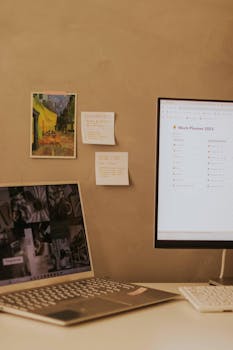
Vous passez d'un écran à l'autre sans vous soucier du reste. Un meilleur aménagement de votre espace de travail numérique peut vous aider à apaiser votre esprit et à retrouver un précieux espace mental pour une concentration réelle, au lieu de simplement cliquer au hasard.
La plupart des travailleurs du numérique ont déjà été confrontés à des bureaux encombrés et à des notifications intempestives. En éliminant ces obstacles numériques, vous pouvez vous concentrer pleinement sur votre travail et l'accomplir plus efficacement : votre attention devient alors un atout précieux.
Ce guide explore les techniques de configuration d'un espace de travail numérique que vous pouvez utiliser immédiatement, facilitant ainsi la transformation de vos habitudes technologiques quotidiennes et l'amélioration de votre capacité de concentration profonde et soutenue.
Définir des zones numériques claires pour chaque tâche
Définir la zone à laquelle appartient chaque tâche est essentiel pour maintenir la concentration dans votre espace de travail numérique : des limites claires réduisent les distractions et favorisent un travail de qualité.
Lorsqu'un espace de travail attribue des applications ou des bureaux virtuels distincts aux courriels, à la conception et aux réunions, le passage d'un mode à l'autre devient naturel. Vous bénéficiez ainsi de repères visuels qui vous aident à adopter l'état d'esprit adéquat.
Création de zones de tâches avec des bureaux virtuels
Répartissez vos tâches principales en « zones » telles que l’écriture, la recherche ou la communication. Les bureaux virtuels isolent ces zones, vous permettant de passer de l’une à l’autre sans surcharge d’applications ni encombrement d’onglets dans votre navigateur.
Imaginez un responsable financier : un bureau virtuel est dédié aux tableurs, tandis qu’un autre gère les courriels. Ce rituel de configuration de l’espace de travail numérique marque le passage du calcul à la conversation, évitant ainsi les auto-interruptions involontaires.
Pour reproduire ce processus, ouvrez la fonction de bureau virtuel de votre ordinateur et nommez chaque bureau en fonction de sa fonction. Cette simple séparation vous aidera à anticiper la suite.
Les ancres visuelles empêchent le changement de contexte
Choisissez des couleurs de papier peint différentes pour chaque zone. Bleu pour la concentration, vert pour les réunions : cet aménagement d’espace de travail numérique offre à votre cerveau un repère visuel rapide lorsque vous passez d’une tâche à l’autre.
Si vous vous apercevez que vous passez au mauvais bureau virtuel, faites une pause et revenez consciemment à votre bureau habituel. Ce léger changement de situation empêche le multitâche automatique de se mettre en place.
Conservez la même palette de couleurs pendant plusieurs jours. La constance conditionne votre esprit plus profondément, renforçant ainsi chaque configuration et rôle de votre espace de travail numérique.
| Type de tâche | Zone recommandée | Application/outil idéal | Prochaine action |
|---|---|---|---|
| En écrivant | Bureau virtuel 1 | Google Docs | Conservez uniquement l'outil d'écriture, fermez toutes les applications de chat. |
| Bureau virtuel 2 | Perspectives | Désactiver les notifications ; traitement par blocs définis | |
| Appels vidéo | Bureau virtuel 3 | Zoom | Fermez tous les onglets non pertinents avant les réunions. |
| Recherche | Bureau virtuel 4 | Navigateur, OneTab | Ajoutez des références à vos favoris, regroupez intelligemment les onglets |
| Planification de projet | Bureau virtuel 5 | Asana | Examiner la liste des tâches, clôturer les projets non liés. |
Éliminer le bruit numérique persistant
En désactivant les sons et alertes inutiles, votre espace de travail numérique devient un havre de paix, vous permettant de laisser libre cours à vos pensées sans interruption lors des tâches importantes.
La plupart des travailleurs du savoir admettent que le flux incessant de notifications et de pop-ups perturbe leur concentration. Désactiver proactivement ces interruptions favorise des sessions de travail approfondies et productives sans exiger un effort de volonté excessif.
Paramètres de notification pour protéger la concentration
Bloquez toutes les notifications (bannières) des applications non urgentes de votre système d'exploitation. Programmez des blocages en « mode concentration » pendant lesquels Slack, Teams et les applications de réseaux sociaux restent inactives pendant au moins 60 minutes.
Pour les communications essentielles, affichez uniquement des notifications visuelles (pas d'aperçu ni de son). Cette configuration d'espace de travail numérique préserve la conscience de la situation sans disperser votre attention à chaque notification.
- Désactivez les notifications d'e-mails pendant vos sessions d'écriture : même un bref coup d'œil interrompt la concentration créative, alors désactivez les notifications directement dans les paramètres de votre zone d'écriture.
- Planifiez des vérifications groupées des notifications : définissez des plages horaires (par exemple, 9 h, 13 h, 16 h). Votre cerveau s’habitue à une vérification ciblée plutôt qu’à un coup d’œil compulsif.
- Désactivez les notifications de votre appareil mobile : activez le mode « Ne pas déranger » ou le mode avion pendant vos périodes de travail intense. Adoptez la même routine pour plus de constance.
- Couper les canaux de manière sélective : autoriser uniquement les canaux urgents ou les contacts VIP à passer pendant les réunions ou les projets importants.
- Utilisez des réponses automatiques : définissez clairement vos attentes avec vos collègues (« Je réponds aux e-mails après 14 h ; contactez-moi en cas d’urgence »). Cette configuration simple de l’espace de travail numérique permet de communiquer les limites sans détour.
La mise en pratique de ces habitudes modifie votre comportement par défaut, rendant ainsi les périodes de concentration plus productives au sein de votre espace de travail numérique.
Lutter contre la surcharge numérique par des pauses intentionnelles
Intégrez de courtes pauses entre les tâches, même sept secondes suffisent pour reposer vos yeux. Cet aménagement de votre espace de travail numérique permet de dissiper les pensées parasites et d'aborder plus efficacement la tâche suivante.
Ajoutez un script simple : à la fin de chaque bloc de travail d’une zone, dites à voix haute : « Changement en cours. » Ce signal physique renforce la fin d’un mode et le début d’un autre.
Intégrer la réflexion dans les transitions diminue la fatigue liée aux distractions et favorise une progression plus délibérée tout au long de la journée.
- Fermez les onglets du navigateur à la fin de chaque bloc : terminez le travail de chaque zone avec un navigateur vide, ce qui donne un sentiment de conclusion avant de passer à la suivante.
- Notez un point clé par bloc : ajoutez une note adhésive ou une note numérique rapide résumant la décision principale, renforçant ainsi la mémorisation et signalant une configuration d’espace de travail numérique productive.
- Faites une pause pour changer de posture : étirez vos bras et détournez le regard de l’écran entre deux sessions de travail intenses. C’est une pause physique qui complète votre organisation numérique.
- Respirez profondément avant de passer d'une application à l'autre : même trois respirations lentes renforcent votre capacité à contrôler votre attention lors de changements rapides de contexte numérique.
- Ajustez l'éclairage de chaque zone : si vous travaillez près d'une fenêtre, modifiez légèrement votre position ou l'éclairage à chaque changement de mode de tâche pour varier les stimulations sensorielles.
Chacune de ces stratégies renforce votre espace de travail numérique, transformant l'objectif abstrait de « concentration » en micro-comportements reproductibles.
Repenser l'organisation des fichiers et des dossiers pour un flux de travail quotidien optimal
La mise en place de fichiers et de dossiers numériques correspondant à vos processus de travail réels garantit qu'aucun document ne se perd, vous permettant de retrouver les ressources et les documents à transférer en quelques secondes, à chaque fois.
Un espace de travail numérique désorganisé vous fait perdre de précieuses minutes chaque heure. Une architecture claire et personnalisée élimine ces micro-retards, optimisant ainsi votre flux de travail et votre productivité à chaque clic.
Associer les emplacements des fichiers aux cycles de vie des projets
Organisez vos dossiers par projets en cours, « en cours de révision » ou « archives ». Ne conservez qu'un seul dossier par phase, afin de toujours savoir que le fichier le plus récent se trouve au bon endroit.
Considérez les dossiers archivés comme des placards bien rangés : déplacez les documents terminés hors de votre espace actif, afin de ne voir que ce qui est pertinent pour votre configuration quotidienne d’espace de travail numérique.
Nommez les fichiers avec des dates ou des codes de version clairs. Par exemple : « T3-stratégie-v2-2024.docx ». Ainsi, toute personne ouvrant le dossier pourra immédiatement voir le travail en cours.
Utilisez les automatisations pour un tri sans effort
Configurez des règles dans votre espace de stockage cloud pour que chaque type de fichier ou pièce jointe soit automatiquement classé dans la zone de projet appropriée. Un espace de travail numérique auto-organisé évite les pertes de données et réduit le travail de classement manuel.
Vous pouvez utiliser des scripts pour déplacer les documents contenant certains mots-clés dans des dossiers étiquetés. Cette configuration habitue votre système à associer les emplacements à une intention, et non plus à une simple habitude.
Revoyez vos règles d'automatisation une fois par mois. Ajustez-les au fur et à mesure que de nouveaux projets ou des conventions de nommage apparaissent, afin que votre structure évolue en phase avec votre journée de travail réelle.
Sélectionner et limiter les ensembles d'outils pour plus de clarté
Choisir la bonne combinaison d'applications pour votre espace de travail numérique permet de gagner en simplicité et en efficacité. Trop d'outils ne font qu'encombrer votre esprit.
Réduire consciemment la variété des outils renforce la familiarité avec ces derniers, ce qui diminue le temps de mise en route pour chaque nouveau projet et favorise la circulation de l'information.
La règle des deux applications pour les tâches principales
Pour chaque tâche (communication, planification, prise de notes), choisissez deux outils fiables. L'un sera l'outil par défaut, l'autre servira de solution de secours pour les cas particuliers ou la collaboration en dehors de votre environnement principal.
Par exemple, optez pour Gmail pour vos e-mails et utilisez Outlook pour les collaborations externes. Au moment de choisir l'outil le plus adapté, cette règle vous permettra de rester décisif et d'y voir clair.
Si quelqu'un vous suggère une troisième application pour une tâche, prenez le temps d'évaluer sa valeur ajoutée. Si elle est superflue, ignorez-la ; préservez la simplicité de votre espace de travail numérique.
Scripts d'intégration pour les nouvelles recrues
Si votre équipe s'agrandit, fournissez une liste de vérification d'une page reprenant les identifiants de connexion et les règles d'utilisation des outils. Un guide de configuration de l'espace de travail numérique peut épargner aux nouveaux collègues de longues heures de dépannage et d'apprentissage.
Testez les listes de contrôle avec les nouvelles recrues : « Quelles informations manquaient ? » « Quelles étapes n’étaient pas claires ? » Révisez jusqu’à ce qu’une seule version réponde à toutes les questions d’intégration courantes.
Intégrez des captures d'écran pour illustrer les fonctionnalités clés. Un guide visuel de configuration de l'espace de travail numérique réduit le temps de formation et améliore durablement les habitudes d'utilisation des outils, sans réunions supplémentaires.
Utilisation délibérée des pauses et des rituels de revitalisation
Des micro-pauses stratégiques et des mouvements réguliers transforment votre espace de travail numérique d'un environnement épuisant en un environnement régénérateur, permettant ainsi à la concentration de se rétablir et à la productivité de rester constante même lors de longues périodes de travail.
Intégrez des phases de récupération programmées — comme de courtes promenades, des rappels pour s'hydrater et des étirements sans écran — afin que le travail en profondeur ne se transforme pas discrètement en fatigue ou en « juste un dernier défilement ».
Applications de minuterie de pause comme partenaires de responsabilisation
Intégrez un minuteur Pomodoro ou à intervalles directement sur votre bureau. Un simple coup d'œil toutes les 25 à 50 minutes deviendra une habitude bien ancrée dans votre espace de travail numérique, et non une source d'interruption.
Réglez les minuteurs pour qu'ils sonnent doucement, pas fort. Cela crée des signaux non intrusifs : c'est comme si un entraîneur vous tapotait l'épaule, et non comme s'il vous réprimandait.
Après chaque minuteur, marchez au moins 30 secondes ou remplissez votre tasse de café. Avec le temps, votre esprit associera des limites claires à un regain d'énergie et à une meilleure productivité de votre espace de travail numérique.
Utilisez les blocs de calendrier pour recharger vos batteries.
Planifiez des plages horaires de « réinitialisation » quotidiennes, même de cinq minutes seulement, dans votre application calendrier. Marquez-les comme occupées afin de respecter votre engagement et de ne pas les empiéter sur ces créneaux.
Ajoutez des invites pour vos pauses, comme « Prenez trois grandes respirations » ou « Détournez le regard de l'écran ». Intégrer ces rappels à votre routine de configuration d'espace de travail numérique vous libère de la charge mentale liée à la planification des pauses.
Après une pause bien méritée, notez une petite victoire réalisée lors de la dernière tâche. Cette pratique renforce les progrès et permet à la concentration de s'accumuler, au lieu de se dissiper après chaque cycle de travail intense.
Utiliser les indices environnementaux pour ancrer la concentration
En ajustant votre environnement de travail numérique, vous optimisez votre concentration en tirant parti de la façon dont notre cerveau réagit aux stimuli. Les odeurs, les sons et la lumière préparent votre esprit à la clarté.
Les espaces de travail qui combinent ces apports environnementaux favorisent une concentration plus profonde, surtout si vous utilisez les mêmes repères de manière constante lors de tâches similaires.
Ambiance sonore propice au travail en profondeur
Diffusez des morceaux instrumentaux ou du bruit blanc en continu pendant vos sessions de concentration. Au fil des semaines, ces signaux audio déclencheront automatiquement le « mode travail » dès qu'ils seront entendus dans votre espace de travail numérique.
Téléchargez une application proposant des ambiances sonores comme la pluie, le lo-fi ou un café. Faites des essais jusqu'à trouver l'ambiance sonore qui vous aide à vous immerger plutôt qu'à vous distraire.
Mettez la musique en pause pour les tâches collaboratives. Le silence signale un passage à l'attention de groupe, évitant ainsi que des signaux audio concurrents ne perturbent vos routines de configuration d'espace de travail numérique.
Manipuler l'éclairage pour changer de tâche
Une lumière vive et froide signale le travail de jour ; une lumière plus douce ou plus chaude favorise la réflexion ou le brainstorming. Investissez dans une lampe de bureau facile à régler pour chaque mode de fonctionnement de votre espace de travail numérique.
Si la lumière naturelle est à son maximum en milieu de journée, profitez-en pour effectuer vos tâches les plus exigeantes. Tamiser la lumière pendant les périodes administratives favorise la détente et vous aide à vous concentrer naturellement sur votre travail.
Le fait de changer quotidiennement la lumière à la même heure finit par devenir automatique, prouvant ainsi que votre espace de travail numérique absorbe ces signaux et les transforme en routines.
Concevoir pour une concentration optimale au quotidien
Configurer efficacement son espace de travail numérique est une compétence qui se perfectionne avec la pratique, les retours d'expérience et de petits ajustements. Les outils et règles mentionnés ci-dessus sont des leviers, et non des solutions universelles.
La réflexion permet de mieux comprendre les paramètres qui favorisent votre concentration. Recueillir de brefs retours hebdomadaires ou effectuer des auto-évaluations transforme l'aménagement de votre espace de travail numérique en un processus évolutif et personnalisé.
Essayez une stratégie cette semaine : une zone de travail dédiée, une pause régulière, une nouvelle règle de classement. Observez l’impact sur votre état mental et votre productivité. L’organisation d’un espace de travail numérique s’acquiert par la pratique, pas par la théorie.


