
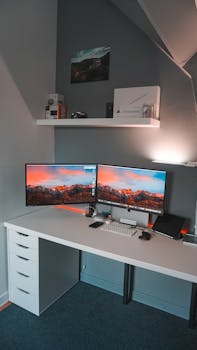
Picture sitting at your desk and everything just works. Screens sync, notes auto-save, and your day flows. That’s the promise of a smart workspace setup using modern tools.
Smart workspace setup benefits aren’t limited to big offices. They help freelancers, hybrid workers, and anyone seeking calm, order, and productivity amidst daily digital chaos.
Explore the practical strategies below to create your ideal space. With the right approach, technology transforms work—not into magic, but into manageable, energizing routines.
Building a Foundation: Set Up the Physical and Digital Basics for Daily Focus
Establish stability by anchoring your smart workspace setup in both physical and digital order. Begin with simple, actionable steps that set the tone each morning.
For example, assign a dedicated device zone—a fixed spot where your laptop, phone, and headset always rest. This anchors your attention and supports neat cable management.
Arrange Workspace Zones for Energy Flow
Divide your desk into zones—screen area, writing pad, action tray. This simple visual strategy reduces distractions and quietly trains your mind to focus.
Practically, slide your phone to the far side of your field of vision during work bursts. If it buzzes, you decide whether to break focus, not the alert.
Think of a well-planned kitchen: knives, cutting boards, and ingredients each have a place. Apply the same logic to your workspace arrangement for predictable comfort.
Organize Your Devices and Manage Cables Smartly
Use clips or cable sleeves for chargers and monitor cords. Fewer tangles mean less frustration and zero time lost troubleshooting power issues mid-task.
Label plugs, especially if you share a power strip. Snagging the wrong cable during a call can be embarrassing; clear signs prevent mix-ups every time.
Position chargers and USB hubs for easy reach—no more crawling under desks. Set them up on the desk edge or behind your main monitor for a tidier look.
| Workspace Zone | Key Tools | Setup Tip | Takeaway |
|---|---|---|---|
| Display Area | External monitors | Position at eye-level | Reduces neck strain; encourages multitasking |
| Charging Hub | USB charger, power strip | Label each cable | Prevents disconnect errors in meetings |
| Audio Corner | Headset stand | Place near keyboard | Quick access; supports call readiness |
| Note Zone | Digital notebook, sticky notes | Keep one type visible | Focuses capture; avoids scattered scraps |
| Action Tray | In/out folders | Sort daily | Supports start/stop rituals for strong work closure |
Curating Essential Apps: Select, Sync, and Secure Your Core Digital Tools
A strong smart workspace setup pairs the right apps with clear sync routines. Pick tools that work across devices and always check built-in security features.
Start with note capture, password managers, and reliable cloud storage. Set daily, weekly, and monthly review prompts so nothing falls out of sync.
Create a Core App Checklist and Regular Audit Habits
Write down your top five daily-used apps: calendar, to-do manager, browser, note app, and file drive. Schedule weekly checks to remove unused apps and update passwords.
This habit strengthens your workspace security and keeps your workflow lean. It also protects against slowdowns caused by old or buggy tools sitting in the background.
- Install updates as soon as they’re available—updated apps patch vulnerabilities fast and deliver fresh organizational tools with every new release.
- Avoid duplicate tools—using two note apps splits your ideas and leads to lost files. Uninstall extras during your weekly review.
- Set up two-factor authentication where possible—this adds an essential lock to your digital workspace door, protecting everything inside.
- Group apps on your phone/tablet by function, not color or brand. This speeds search time and keeps your focus on tasks, not app aesthetics.
- Automate logins with a trusted password manager—it cuts friction every day and lets you generate strong, unique passwords for each important tool.
When you maintain this system, your digital landscape supports you and minimizes stressful surprises.
Balance Automation and Manual Review
Let calendar sync, file backups, and password filling run automatically, but always set reminders to manually audit each system monthly.
This regular check finds any sync glitches before they become bigger organizational messes, especially when using a smart workspace setup that spans multiple apps or devices.
- Enable confirm-before-delete on all major apps to avoid accidental lost notes or events during sync issues or device swaps.
- Review sharing settings—who can see, edit, or download your files? Restrict permissions to current collaborators and regularly remove old links or contacts.
- Archive rather than delete critical files to prevent data loss from sync mistakes or misunderstandings.
- Practice restoring deleted items from backup—this helps you act fast if you ever lose a file accidentally. Knowing how to recover brings peace of mind.
- Test device-to-device syncing—move a file between laptop, tablet, and phone weekly. This surfaces problems before they disrupt actual work deadlines or client calls.
Your smart workspace setup can only be as resilient as your routines, so reinforce them with regular checkups and stress tests.
Design Routines: Automate, Batch, and Revisit Workflow Patterns That Stick
To create lasting results, embed routines into your smart workspace setup so you don’t rely solely on memory. Automation and batching propel momentum.
A practical routine example: at 9 a.m., check your calendar app, then batch process email for exactly 10 minutes before moving to priority work.
Schedule Focus and Recovery Windows
Time blocking raises energy and prevents screen fatigue. Set 50 minutes for deep work, followed by a 10-minute stretch-and-water break—schedule each segment inside your digital planner.
A visual timer helps. On-screen time trackers, even a simple pop-up, nudge you to switch gears and protect your workload from digital wandering.
Just as athletes alternate sprints and recovery laps, alternate bursts of focused effort with real pauses to build sustainable productivity.
Batch Your Smallest, Most Repetitive Tasks
Cluster similar actions, like file organizing or calendar invites, into time slots. For example, handle all meeting scheduling in a single 20-minute block after lunch.
Create a template for routine email responses—paste, then personalize as needed. This steady habit trims cognitive fatigue and leaves you fresher for high-impact work.
Your smart workspace setup supports you best when routines run in the background, not the foreground of your daily attention.
Optimizing Notifications: Regain Control of Alerts Across Devices
Immediate clarity comes from gating alerts. Use a smart workspace setup to surface only what matters now, silencing the rest until it’s actually needed.
Start by sorting all digital notifications into action-required and FYI-only. Route only the urgent to your main devices during work hours—mute others until breaks.
Customize Notification Settings by Device and App
On your laptop, allow only calendar and communication tool pop-ups. Silence shopping and news alerts. On your phone, set app-specific Do Not Disturb intervals for work slots.
After hours, reverse the flow—allow personal notifications, and mute work-related ones. Tweak settings for every app using their internal controls. Review them monthly for drift.
Teach your smart workspace setup to reflect your working style, not default software recommendations. Fine-tuned notifications lower anxiety and reduce digital noise.
Ergonomic Upgrades: Tune Hardware for Comfort and Efficiency
Physical tweaks to your smart workspace setup matter as much as digital ones. Adjust seat height, monitor angle, and peripheral layout for long-term health and focus.
Swap basic keyboards or mice for ergonomic models. These switches help avoid wrist strain or backaches—especially during high-intensity project stretches.
- Adjust monitor height so the top edge sits level with your eyes—good posture relieves neck pain and supports energy throughout the day.
- Position your keyboard and mouse straight ahead and close—small tweaks here minimize shoulder stress and help keep wrists neutral during typing sprints.
- Add a footrest if your feet dangle; stability there supports spinal alignment, which matters for hours-long work sessions.
- Use a chair with adjustable lumbar support. Sit back instead of leaning—or add a rolled towel behind your lower back if needed.
- Test lighting: place your main light to the side, not behind your screen, to limit glare and help your eyes stay fresh longer.
When your smart workspace setup is ergonomic, you notice fewer aches and recover attention faster after breaks.
Personalizing Your Digital Environment: Use Themes, Music, and Visual Cues
When you personalize your smart workspace setup with subtle cues, you create familiarity and trigger productive mindsets without effort. Start by changing system themes and daily playlists.
Use digital wallpapers or music linked to certain work periods. Our brains link sights and sounds to emotions, supporting task-specific focus when you repeat these cues.
- Switch to a dark theme in late afternoon—this cues the start of wrap-up routines and rests tired eyes before shutting down for the day.
- Assign playlists for focus, calls, or breaks. Hearing the same music reminds your brain it’s time for deep work—or that it’s okay to breathe.
- Display digital sticky notes for goals in a corner of your main screen. Limit to three; more turns reminders into background noise and dilutes their power.
- Change your digital calendar’s color codes by project. At a glance, see which category dominates your time and rebalance if necessary.
- Set motivational widgets or status bars for daily progress—review every hour for fast self-check-ins and to reinforce your momentum.
Keep visual and audio tweaks simple. Too many changes and your smart workspace setup loses its steadying effect.
Investing in Ongoing Workspace Evolution: Adapt Regularly for Lasting Results
The smartest smart workspace setup isn’t static. Evolve your systems and layouts monthly, responding to changing work needs and new tech you discover.
One month, you might try a new collaborative whiteboard app. If it saves you a single hour each week, keep it; if not, replace it with something leaner.
Run a Monthly Workspace Audit for Continuous Improvement
Set a recurring first-Saturday calendar event: review your device placements, app toolkit, notification flows, and physical comfort levels. Note small friction points and brainstorm fixes.
Act on at least one finding: move a charger, uninstall a bloated app, or tweak a playlist. These low-stakes experiments drive big cumulative change in your smart workspace setup.
Track changes with a digital sticky note labeled “Workspace Experiments.” List tweaks month by month so you see what’s worked and what needs more time to settle.
Reflect, Revisit, Repeat: Making Smart Workspace Setup a Lifelong Habit
Consistent routines and regular tweaks forge a workspace that evolves with you. Smart workspace setup is an ongoing habit, not a one-time task.
Every improvement—small or large—makes your digital and physical spaces better allies. Smart workspace setup helps you work with your tools, not against them.
Check in with your setup every month: stay adaptive, stay curious, and let technology quietly anchor your best work every day.


