
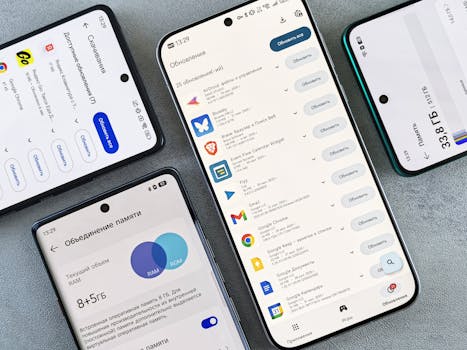
Few things are more irritating than a sluggish device when you just want to get work done or relax. Even new gadgets can slow down unless you regularly optimize device performance using a few simple strategies.
When phones, laptops, or tablets run at peak speed, you waste less time waiting and can focus on what matters. This translates to reduced stress and smoother digital experiences for work and play.
By learning which actions actually optimize device performance, you’ll extend your devices’ lifespan and enjoy fewer slowdowns. Read on to discover expert-backed, actionable ways to keep every device running like new.
Regular Updates Deliver Immediate Speed Gains
Frequent updates address security, bugs, and speed. Updating right away ensures your devices get the latest fixes that optimize device performance without extra effort.
Check for updates on a set day each week so you don’t miss critical improvements. Even mid-day, quick updates keep things running right and help prevent frustrating glitches.
Apply Updates as Soon as Prompted
When your device notifies you of a new update, don’t put it off. Tap the update as soon as you’re able. Fast installs ensure you benefit from security and speed fixes instantly.
Imagine sitting at your desk, ready to work. You see a prompt: ‘System Update Available.’ Respond right away. You’ll avoid the risk of slowdowns or crashes later.
This habit carves away layers of digital clutter, making it far easier to optimize device performance all year long.
Automate Updates for Convenience
Enable automatic updates whenever possible. Automation means your laptop, phone, or apps improve even when you’re sleeping or busy elsewhere.
Go to settings, find “Automatic Updates,” and turn them on. Trust that essential patches arrive quietly in the background every week or month.
This proactive step frees you to focus on tasks—knowing that speed boosts and security fixes quietly keep the device at its best.
| Device Type | Where to Enable Updates | Recommended Frequency | Takeaway |
|---|---|---|---|
| Windows Laptop | Settings > Update & Security | Weekly | Check every Monday for new system and app updates. |
| Mac | System Preferences > Software Update | Weekly | Turn on auto-update for the best results and fewer interruptions. |
| Android Phone | Settings > System > Updates | Monthly | Schedule checks for the first of every month to optimize device performance. |
| iPhone | Settings > General > Software Update | Monthly | Tap “Automatic Updates” to install overnight while charging. |
| Tablet | Device Settings > Updates | Monthly | Connect to Wi-Fi and power for uninterrupted updates. |
Clear Digital Clutter for Immediate Results
Decluttering frees up storage, opens memory, and significantly helps optimize device performance. The less stuff your device handles, the faster and more reliable it feels every day.
By removing unused apps, large files, and duplicates, you give your device more breathing room. This makes opening apps and switching tasks much snappier.
Run a Monthly Storage Cleanup
On the first Saturday of each month, set aside 15 minutes to delete excess files: outdated downloads, duplicate photos, and movies you’ve already watched.
Navigate to your device’s storage or files section. Sort your files by size. Remove anything you don’t genuinely need to retain.
- Delete obsolete downloads to free up precious gigabytes.
- Remove duplicate photos and screenshots that bloat storage.
- Archive old documents in the cloud if you need backup.
- Clear the Recycle Bin or Trash to complete the cleanup.
- Use built-in storage manager apps for a fast, guided declutter.
By following these routines, you can instantly optimize device performance and feel a tangible speed difference.
Limit Startup Programs for Speedier Boot Times
Disable apps you don’t need when your device starts up. Go to Task Manager (Windows) or Login Items (Mac), review, and keep only essentials checked.
Each unnecessary startup program adds seconds to boot time and can slow background processes. Streamlining the list means faster logins and less memory strain.
- Uncheck games or seldom-used apps from startup for quick gains.
- Keep antivirus and cloud-syncing tools active for safety and backup.
- Run a startup audit every two months; adjust when you add or remove software.
- Enable fast boot features if your device supports it for even quicker power-ons.
- Use built-in performance monitors to spot and disable heavy apps automatically on reboot.
With fewer programs running at launch, your system boots faster and uses resources more efficiently, making it easier to optimize device performance daily.
Prioritize Lightweight Apps and Alternatives
Choosing efficient apps helps conserve battery life and speeds up every task. Lightweight tools and browsers reduce background load and lead to noticeable optimization gains.
Switching to lightweight alternatives means your device handles daily routines with less strain. The faster response and lower crash rates optimize device performance every session.
Choose Browser Extensions Carefully
Limit browser add-ons to only what you truly need. Too many extensions increase browser lag and memory usage, slowing down even newer systems.
For example, keep an ad blocker, password manager, and maybe one productivity plugin. Disable or uninstall others you don’t use regularly for improved browsing speed.
Review your list every few months and keep what adds value. Trimming browser bloat results in snappier web app performance and a smoother online experience.
Test App Performance Before Committing
Install apps one at a time, checking task manager or settings for CPU/RAM spikes. If an app hogs resources compared to peers, search for a lighter alternative.
If your computer fan spins up after launching a photo editor, try a basic viewer first. Use apps that handle your tasks without dragging down system speed.
Tell yourself, “If an app slows my device, I’ll try three alternatives before settling.” This method ensures the best balance between features and optimization.
Schedule Device Reboots and Maintenance
Planning regular reboots and checkups helps catch performance dips early and gives your device a fresh start—just like a clean kitchen runs better after each tidy-up.
“Restart Sunday” is a simple example: every weekend, fully restart your main devices to clear out temp files, cache, and background memory leaks.
Automate Maintenance Tasks for Consistency
Use built-in maintenance tools on computers and schedule cleaning tasks to run overnight or during downtime. This keeps systems free from gunk and maintains optimal speed consistently.
Programs like Disk Cleanup or built-in optimizer apps can scan and address fragmented files or wasted storage, making it much easier to optimize device performance automatically.
Your device will run more smoothly on Monday morning if you let scheduled tools do their work overnight or during idle times.
Monitor Performance Metrics Regularly
Check system health dashboards at least every two weeks. Monitor free space, temperature, memory, and CPU usage. Early detection helps address issues before they become big headaches.
If you spot high resource use on a certain day, retrace your steps and see if a new app or open file is the culprit. Adjust and optimize device performance on the spot.
Keeping in touch with your device’s health statistics stops tiny slowdowns from piling up and becoming daily frustrations.
Minimize Background Activity and Notifications
Disabling nonessential background apps and notifications releases memory, saves battery, and removes ongoing distractions. Fewer interruptions also mean faster task switching and less lag.
When every notification brings an alert, your device does dozens of tiny extra jobs. Cutting down the noise directly helps optimize device performance and makes focusing much easier.
Turn Off Unnecessary Sync Services
Disable auto-sync for apps rarely opened or non-work-related cloud storage. Manual sync lets you control updates and minimizes background data and power use.
Your device won’t waste effort checking for changes in ten places every minute. You’ll notice a smoother, quicker experience when switching between tasks or waking your device up.
To cut distractions, leave messenger apps off auto-sync except during planned check-ins, so your energy and your device’s resources go where you intend.
Silence or Filter Least Important Notifications
Review alert settings for each app or system service. Mute, group, or filter what’s not urgent—such as social media pings and special offers.
Quieting low-priority notifications means your attention (and your device’s) isn’t constantly pulled away. Batching alerts in summary form is a smart productivity and optimization strategy.
Pair this with Do Not Disturb schedules during work or sleep. You’ll see real differences in speed, battery, and focus, both short- and long-term.
Apply Smart Storage Strategies to Avoid Slowdowns
Using cloud storage and external drives reduces internal stress on your device. Smart storage routines keep your main disk lean, making it easier to optimize device performance anytime.
Cloud backups and regular archiving preserve important data while reducing the weight your main device has to carry. The right routine means every file is just a click away if needed, but doesn’t slow you down.
Adopt the “Active/Archive” File Rule
Move finished projects, old photos, or large media to cloud or external storage every three months. Only current work stays on the device’s main drive for fastest access.
This analogy fits: imagine a tidy desk with just the tools you need, while reference materials are nearby but out of the way. Performance (your workflow) is less cluttered and easier to manage.
Schedule this routine for the end of each quarter, knowing you’re also reducing risks of data loss and accidental deletion on your core device.
Leverage Built-In Storage Optimizers
Enable features like Mac’s ‘Optimize Storage’ or Windows’ ‘Storage Sense’. These tools clear caches, auto-remove unused files, and keep storage lean for optimized day-to-day work.
Review system settings to activate storage optimization options and check reports monthly. You’ll notice fewer storage alerts and better responsiveness during heavy multitasking.
Let your device’s built-in tools do the heavy lifting for ongoing speed improvements, coupled with manual cleanups for best long-term optimization.
Choose Energy and Power Settings That Boost Speed
Adjusting energy profiles adds hours of battery life without major trade-offs. High-performance settings switch off unnecessary low-power throttling so your device works at its best when you need speed.
With portable devices, this choice is about balance. For demanding work, select performance mode; for travel, use power-saving but revert when quick response matters to optimize device performance.
Switch Profiles Based on Activity Type
Before starting a video call, big download, or photo edit, switch to high-performance mode. Afterward, move back to balanced or battery-saver to extend time between charges.
This smart habit means you always get the right mix of speed and efficiency. It becomes as natural as adjusting room lighting for reading versus relaxing.
Create shortcuts or automate profile changes with scheduling assistant apps, so it’s effortless to keep both battery and speed high with no extra thought.
Monitor Battery Health and Calibrate Regularly
Check your battery health monthly via system diagnostics. If you see major capacity drop, calibrate with a full charge cycle—run until empty, then right back to full without pausing.
Prompt calibration restores battery accuracy and can slightly recover performance lost to misreported charge levels. This step keeps your device running longer and faster on every charge.
Set a calendar reminder for the first of each month to review battery stats and complete calibration if needed, making battery care a routine part of optimizing device performance.
Implement Proactive Security for Sustained Speed
Strong security settings protect both privacy and speed. Viruses, malware, and unwanted downloads slow down devices quickly, so good security is non-negotiable in maintaining optimal performance.
Up-to-date antivirus and vigilant browsing habits are as crucial as regular maintenance. Protecting your device also shields its speed, so you spend less time troubleshooting and more time being productive.
Schedule Weekly Security Scans
Run a quick security or malware scan every Friday afternoon before you wrap up work for the week. Automated full scans may be scheduled overnight once a month, paired with updates.
Fast, scheduled scans catch sneaky background threats before they multiply or start hogging resources. A proactive scan keeps devices responsive and supports continuous optimization efforts.
This routine can be set and forgotten—let your security tools send alerts only if something needs your attention. Consistency pays off in worry-free, speedy device ownership.
Only Install Apps from Trusted Sources
Whenever adding new software, verify you’re using official app stores or publisher websites. Skip shady download links or emailed attachments which might pack malware or adware.
If you hear yourself saying, “I’m not sure if this is safe,” stop and research first. Quick caution now avoids hours of cleanup later and helps optimize device performance ongoingly.
Bookmark official stores and update pages for all your essential apps, making it convenient to install, update, and stay protected at the same time.
Consistent Actions Build Long-Term Device Health
With the right routines in place—updates, decluttering, safe app choices, and proactive security—you continually optimize device performance and minimize everyday disruptions.
Every step detailed above builds on the last, compounding to create noticeable improvements that stick. Modern gadgets remain dependable when you give them small, steady doses of attention.
Make these habits a personal standard. Each time you act, your devices thank you with faster startups, longer battery life, and a workflow that feels effortless—from today and long into the future.


